Nov 26, 2025
How to Add Google Analytics 4 to Your Base44 Website

Understanding who visits your site, where they come from, and how they interact with your content is essential for growth. Google Analytics 4 (GA4) gives you real-time insights to make data-driven decisions — and it's completely free.
This guide will walk you through connecting Google Analytics to your Base44 website in just a few simple steps.
Step 1: Create Your Google Analytics Account
First, you'll need to set up a Google Analytics property for your website.
Go to analytics.google.com and sign in with your Google account
Click the "Start measuring" button to create a new property
Follow the setup wizard to enter your account details
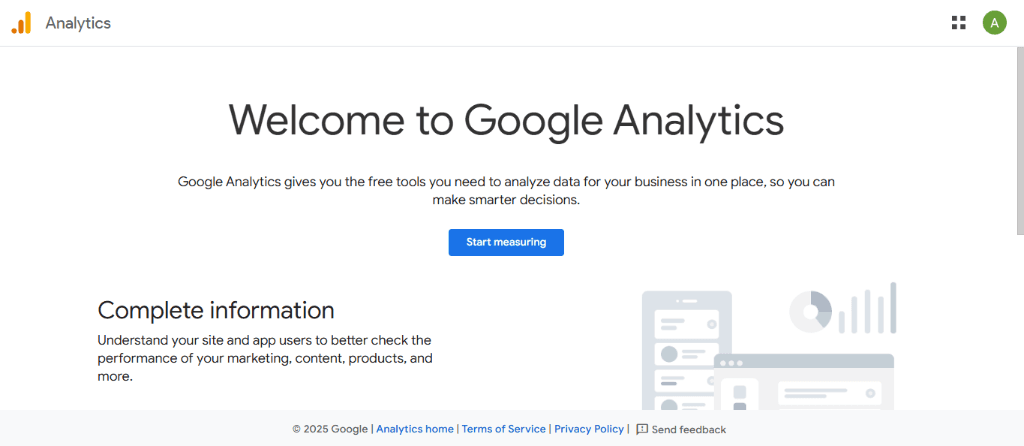
The Google Analytics welcome screen - click "Start measuring" to begin
Account Setup Details
During the setup process, you'll need to provide:
Account name: Choose a name for your analytics account (e.g., "My Business")
Property name: Your website name
Reporting timezone: Select your local timezone
Currency: Choose your preferred currency for any e-commerce tracking
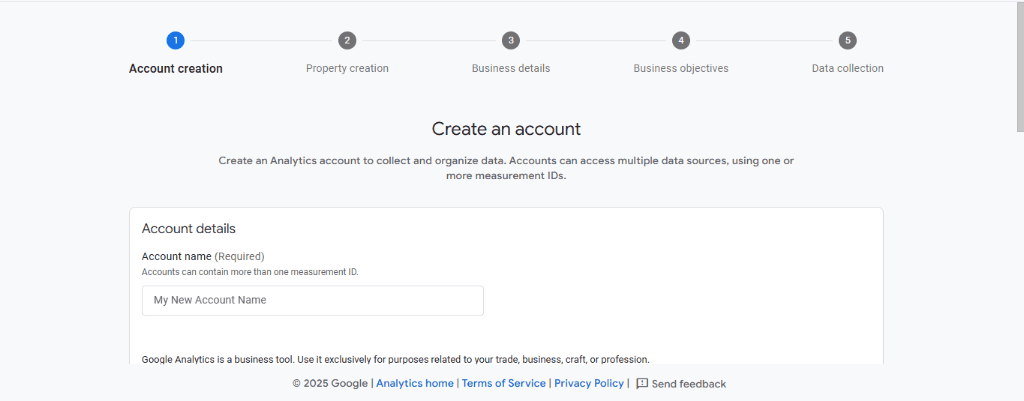
Fill in your account details to get started
Step 2: Get Your Tracking Code
After creating your property:
Click Admin → Data collection and modification → Data Streams → select your web data stream
Under Tagging Instructions, select "Install manually"
Copy the Global Site Tag (gtag.js) code snippet displayed
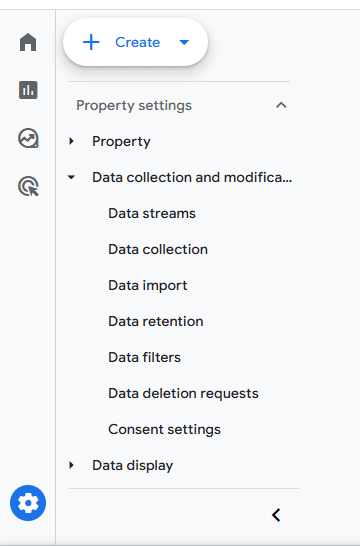
Navigate through Admin → Data collection and modification → Data Streams to access your tracking code
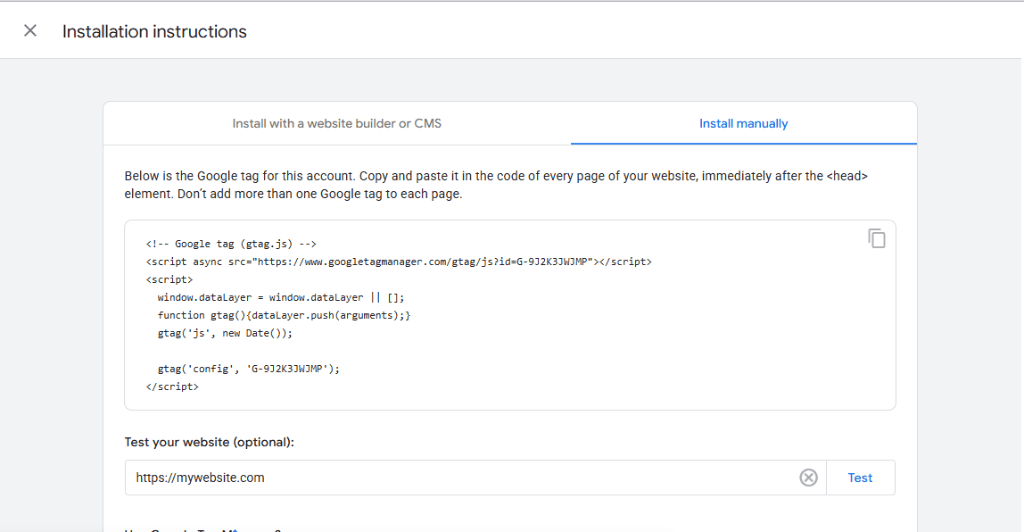
Copy your tracking code snippet - it will look like this
Your tracking code will look something like this:Step 3: Ask Base44 to Add Your Code
In your Base44 project, open the AI chat and paste this prompt:
Send This Message to Base44 AI📝 Copy & Paste This Prompt:
Hi, please help me add my Google Analytics tracking code to my website.
Add this code to the Layout.js file inside a useEffect hook:
[Paste your tracking code here]
Make sure it loads on every page and only loads once. Thank you!
Replace
[Paste your tracking code here]with the actual code you copied from Google Analytics.
What Base44 Will DoThe Base44 AI will add your tracking code to the Layout component, which ensures:
✅ The code loads on every page of your website
✅ It only loads once (avoiding duplicate tracking)
✅ It's properly placed in the document head for optimal performance
Step 4: Verify Your Setup
After Base44 confirms the code is added, it's time to test!
Go back to your Google Analytics dashboard
Click on the "Realtime" tab in the left sidebar
Open your website in a new browser tab
You should see your visit appear instantly in the Realtime report! 🎉
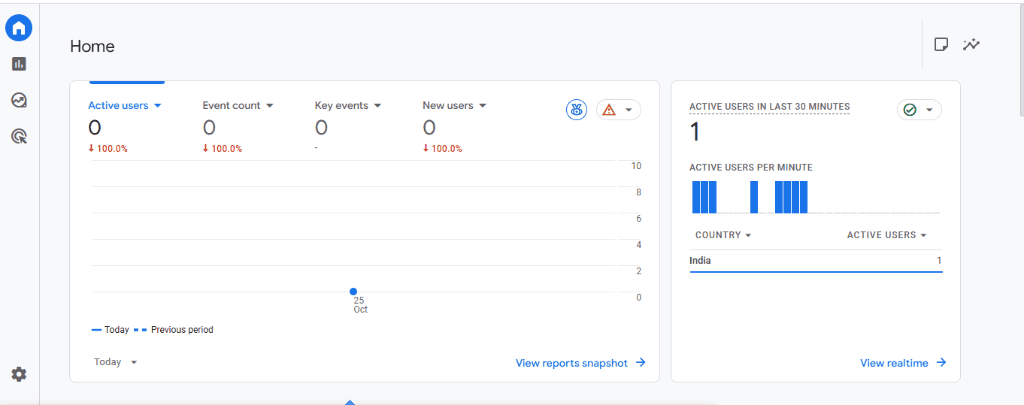
Check the Realtime report to confirm tracking is working
Troubleshooting Tips
If you don't see your visit in the Realtime report:
Wait 1-2 minutes and refresh the page
Make sure you're not using an ad blocker (it may block Google Analytics)
Check that your Measurement ID matches in both Google Analytics and your website code
Try opening your site in an incognito/private browser window
What Happens Next?Once your tracking is set up, Google Analytics will start collecting data automatically. Within 24-48 hours, you'll be able to see:
Audience insights: Who visits your site (location, device, demographics)
Traffic sources: Where visitors come from (Google, social media, direct, etc.)
Behavior data: Which pages are most popular, how long users stay, where they exit
Conversions: Track specific goals like button clicks, form submissions, or purchases
Pro Tips for Better AnalyticsSet up goals: Define what actions matter most (e.g., "Contact form submitted")
Exclude your own traffic: Filter out your own visits to keep data clean
Connect Google Search Console: See which search queries bring people to your site
Check weekly: Make it a habit to review your analytics and spot trends early
You're All Set! 🎉Congratulations — your Base44 website is now tracking with Google Analytics! You've taken an important step toward understanding your audience and making data-driven decisions.
Remember to check your analytics regularly and use the insights to improve your website and grow your business.Happy tracking! 📊
Still Stuck? Get Expert Help
Don't waste hours trying to figure it out alone. Connect with a vetted developer who can help you get unstuck and move forward with your project.