Nov 26, 2025
How to Add Password Reset Functionality in Lovable + Supabase

Why Password Reset Matters
Every app needs a way for users to recover their accounts when they forget their password. Without this feature, you risk losing users who can't access their accounts. This guide shows you how to implement a complete password reset flow in Lovable using Supabase authentication.
The process involves creating a "Forgot Password" page, configuring Supabase to handle reset links, and building a "Reset Password" page where users can set their new password.
Step 1: Create the Forgot Password Page
First, you'll need to create a page where users can request a password reset link.
Use This Lovable Prompt
In your Lovable project, paste this prompt to create the forgot password page:
📝 Copy & Paste This Prompt:
Create a forgot password link that redirects to a screen that has a form where user enters email, and a submit button.
Lovable will generate a clean, functional forgot password page for you. Here's what it should look like:
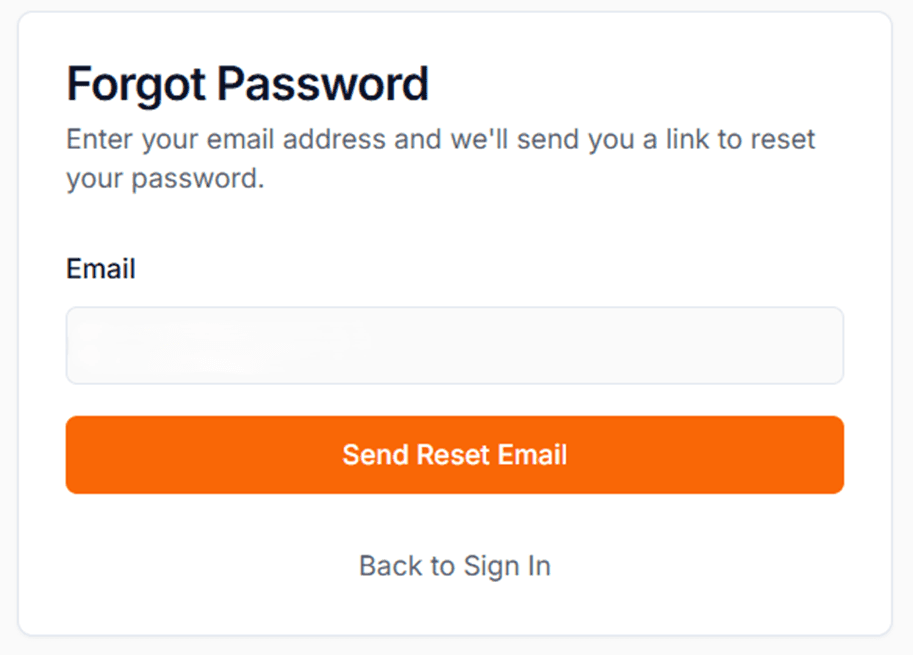
Sample forgot password page with email input and submit button
Step 2: Configure Supabase Redirect URL
Now you need to tell Supabase where to send users after they click the reset link in their email.
Navigate to the Authentication section in your Supabase project dashboard
Click on "URL Configuration"
Add a redirect URL in this format:
https://your-lovable-url.com/reset-passwordClick "Save"

Navigate to Authentication in your Supabase sidebar
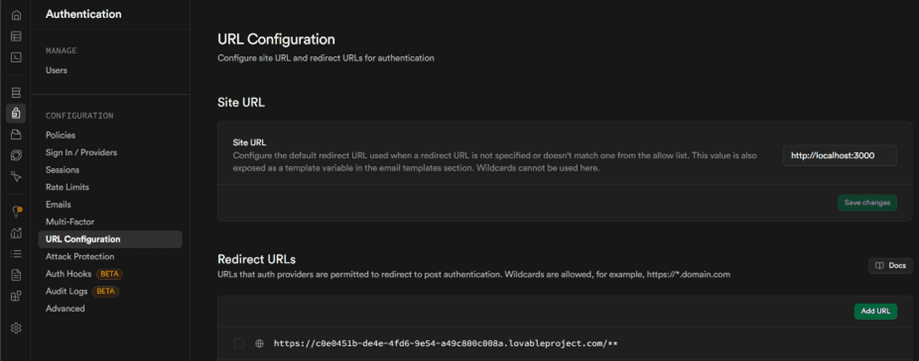
Click on "URL Configuration" in the Authentication settings
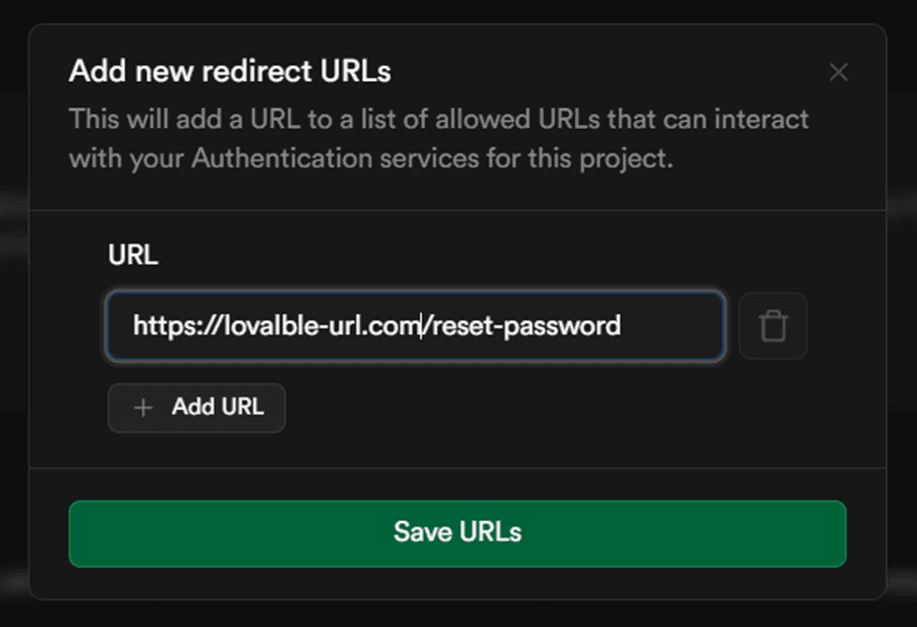
Add your reset password redirect URL and save
Important: Make sure to replace your-lovable-url.com with your actual Lovable app URL.
Step 3: Create the Reset Password Page
Next, you'll create the page where users actually set their new password.
Use This Lovable Prompt
In Lovable, paste this prompt:
📝 Copy & Paste This Prompt:
Create a reset password page, it should have the route /reset-password, and it should contain a form with 2 input fields (New password, and confirm new password), and a button to submit.
Step 4: Test the Complete Flow
Now let's walk through the complete user experience to make sure everything works correctly.
The User Journey
User clicks "Forgot Password" on your login page
User enters their email address and clicks "Send Reset Email"
User receives an email from Supabase with a reset link
User clicks the "Reset Password" link in the email
User is redirected to your
/reset-passwordpageUser enters and confirms their new password
User clicks "Update Password" and is redirected back to the login page
User logs in with their new password ✅
What the Email Looks Like
After requesting a password reset, users will receive an email from Supabase that looks like this:
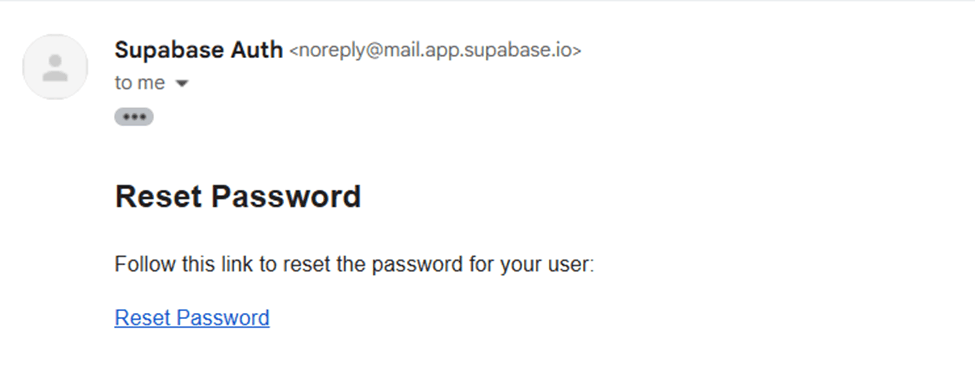
Example of the password reset email sent by Supabase
The Reset Password Page
When users click the reset link, they'll see a page where they can enter their new password:
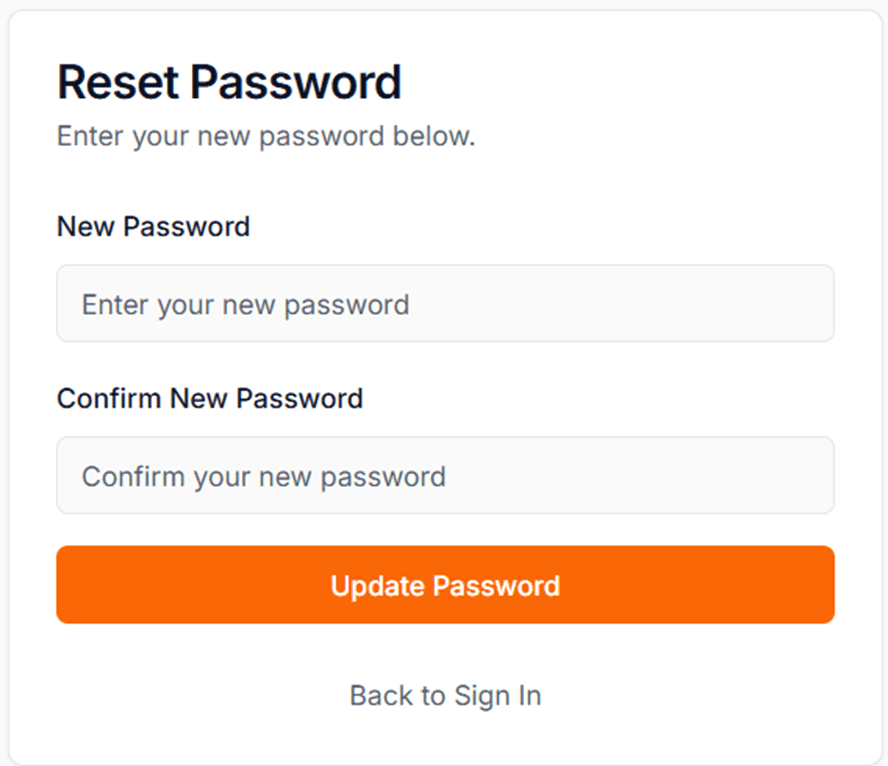
Sample reset password page with new password fields
Troubleshooting Common Issues
Reset Link Not Working?
Double-check that your redirect URL in Supabase matches your exact Lovable URL
Make sure you included
/reset-passwordat the end of the URLVerify that the route
/reset-passwordexists in your Lovable appCheck your browser console for any error messages
Not Receiving the Email?
Check your spam folder
Verify the email address is correct and exists in your Supabase user database
Wait a few minutes - sometimes email delivery can be delayed
Check Supabase logs in the dashboard for any error messages
Password Won't Update?
Make sure both password fields match
Check if your password meets Supabase's requirements (usually minimum 6 characters)
Try clearing your browser cache and cookies
Make sure the reset link hasn't expired (they typically last 1 hour)
Best Practices for Password Reset
Add clear instructions: Tell users to check spam if they don't see the email
Show success messages: Confirm when the reset email has been sent
Add password strength indicator: Help users create secure passwords
Set expiration times: Reset links should expire after a reasonable time (default is 1 hour)
Validate password confirmation: Make sure both password fields match before submitting
Provide a back button: Let users return to login if they remember their password
You're All Set! 🎉
Congratulations! Your Lovable app now has a complete password reset flow. Users can recover their accounts when they forget their password, and you have peace of mind knowing they won't get locked out.
Remember to test the full flow yourself before going live, and consider adding additional security features like rate limiting on password reset requests to prevent abuse.
Happy building! 🚀
Still Stuck? Get Expert Help
Don't waste hours trying to figure it out alone. Connect with a vetted developer who can help you get unstuck and move forward with your project.